- Get Started
- User Guide
- How to
- ** How to use event_type category to do more
- How to Activate EventON
- How To Allow Users to Submit Events and Create an Events Listing Page
- How to apply a patch fix
- How to Bulk Update Language Translations Using the Import/Export Tool
- How to cancel addon subscription before auto renew
- How to Deactivate EventON Addon Licenses
- How To Display or Hide the Live Now Icon
- How to Enable Auto-updates for EventON
- How to find your EventON license key
- How to Fix a Broken Sidebar Caused by the EventON Widget
- How To Hide Blank Rows On the Calendar EventTop
- How To Set Up and Use the Filter Bar on Calendars
- How to Set Up Health Guidelines for EventON and Extend It
- How to Setup & Use Custom Fields for Events
- How to setup & use multi data types
- How to Setup Basic Paypal for Events
- How to show past events
- How to show your calendar on external sites using an iFrame
- How To Turn on Sort Options On Your Calendar
- How To Upgrade Your EventON Addon License
- How to Use Hashtags to Link to Event Sections
- How to Use Single Event Data Values
- How to Use the EventCard Designer
- How To Use the EventON Shortcode Executor(ESE) Widget
- How To Use The EventTop Designer
- How To Use the ICS Import Tool
- How to Use Virtual Visible Event End Time for Events with Limited Visibility but Extended Durations
- Using an SMTP Mail Plugin To Solve Email Delivery Issues in EventON
- General
- Basic System Requirements for EventON
- Best Practices Before Doing an Addon Update
- How to Delete Old Events from WordPress Trash Automatically
- How To Upgrade From Lite to Full Version
- I am confused about Event Type categories
- What is the calendar filter
- Why am I unable to proceed with the checkout for addon purchases?
- Troubleshooting
- ** What to check if eventON is not working
- How to debug for PHP code errors
- How to debug Javascript interactive issues
- How to find if an issue is coming from eventON
- How to fix font awesome icons not working on your site
- How to fix style override issues
- Increasing the WordPress Memory Limit
- Troubleshooting Using the Health Check Plugin
- Why is Location Google Map grayed out or not displayed on Event Card
- Virtual Events
- Frequently Asked Questions
- Code snippets
- CODE: To add additional healthcare guidelines
- How to add new social share icons
- How to change “events” slug & rewrites
- How to customize the eventtop date format
- How to hook into eventTop
- How to increase event type category count
- How to load EventON scripts to a page
- How to show additional custom data in the eventCard
- CODEX
- Event Post Meta Variables
- Hooks: Actions & Filters
- How to Add a Custom Event Status
- How to Customizing the Upcoming Events List on Event Taxonomy Archive Pages
- How to enable Plugin Editor for WordPress
- How to get more custom event data fields
- How to Include Additional Languages
- How to use Actions and Filters
- Taxonomies of EventON
- Template Tag: add_eventon
- Other
- Tricks and Tips
- ** Override CSS in your calendar
- How to create events that goes past midnight
- How to customize Events archive page
- How to customize location and organizer archive page
- How to override event colors with event type colors
- How to show featured image on eventTop
- How to show various information on the eventTop
- How to translate EventON with WPML on the front-end
- One solution for /events slug not working
- Various Creative Ways to Use Multi Data Types
- APIs
- Addons
- Action User
- ActionUser Paid Feature Events
- ActionUser Plus
- Advent Calendar
- Bookings
- Check-ins
- Countdown
- CSV Importer
- DailyView
- Dynamic Pricing
- Event API
- Event Dynamic Pricing
- Event Lists
- Event Map
- Event Photos
- Event Reviewer
- Event Search
- Event Seats
- Event Slider
- Event Tickets
- Auto Complete Ticket Order
- Auto re-stocking refunded, cancelled or failed orders
- Changelog for Event Tickets
- CODE: How to send Emails as Bcc
- How to add additional data to confirmation email
- How to add additional fields at checkout
- How to add additional fields to download attendees CSV file
- How to customize ticket email template
- How to manage capacity separately for repeat events
- How to set up Event Tickets
- How to set up variable prices for Tickets
- How To Switch From WooCommerce Blocks to Shortcode-Based Cart & Checkout Pages
- Event Wishlist
- EventBrite
- Filters Plus
- FullCal
- ICS Importer
- Include Anything
- Lists & Items
- Moon Data
- PDFer
- Polls
- QR Code
- Reminders
- Repeat Customizer
- RSS Feed
- RSVP Events
- RSVP Events Invitees
- RSVP Events Waitlist
- RSVP Points
- Single Events
- Speakers & Schedule
- Subscriber
- Sync Events
- Tickets Waitlist
- Variations & Options
- Virtual Plus
- Weather
- WeeklyView
- YearlyView
- Policies
- Server Related
- Shortcode
- Translation & Languages
How to setup & use multi data types
Last Updated: September 18, 2026
In eventon version 2.5 we have added multi data types (MDT) feature.
Benefits of MDT
MDT allows you to create an item once with details and values and reuse that item again and again for unlimited events without having to re-enter the item details and values.
#1. Activate MDT
Go into EventON settings > Categories and then under EventCard Multi Data Types you can activate the number of data types you need. Currently, by default it allows you to add up to 3 different types while this can be increased with a pluggable function. (filter name: evo_multi_data_type_count)
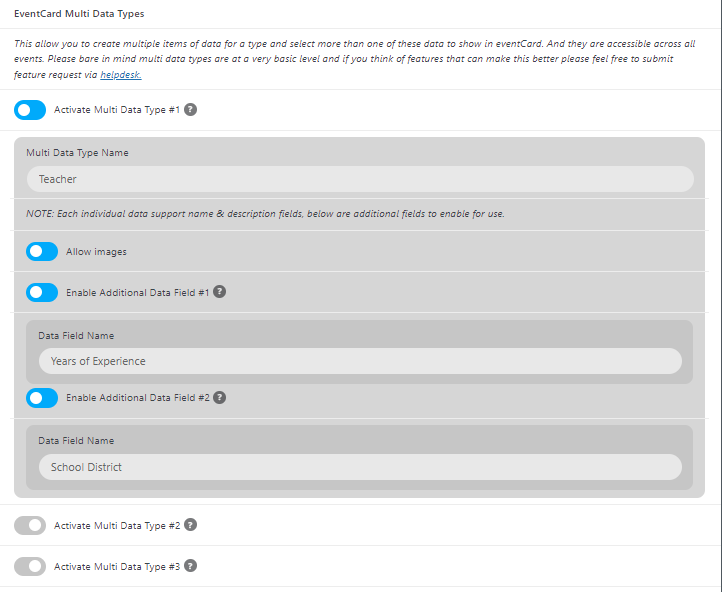
As you can see above; in this example, we are going to create an MDT called teacher. We are enabling images and 2 additional data fields. By default, each MDT item will support name and description fields.
#2. Create MDT items for an event
Let’s say for your event you want to add “Suzan Price” as a teacher for the event.
Go into the event you want to add an MDT (a teacher in our example). Go to event edit and then under the Event Details meta box you can find the new MDT section with the name you set for the MDT. (For our example it is Teacher)
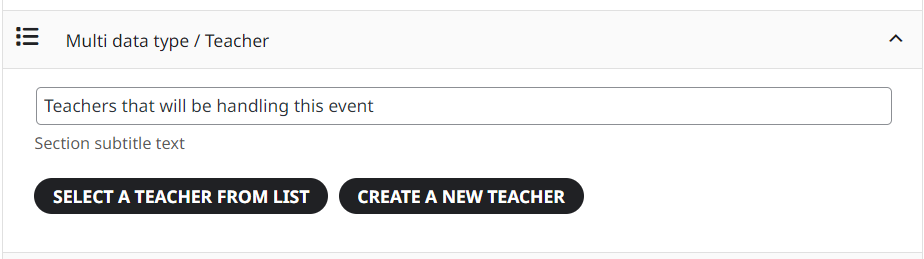
Since you haven’t created any MDT items, you can do so by clicking the Create a new teacher (create a new {name}) button.
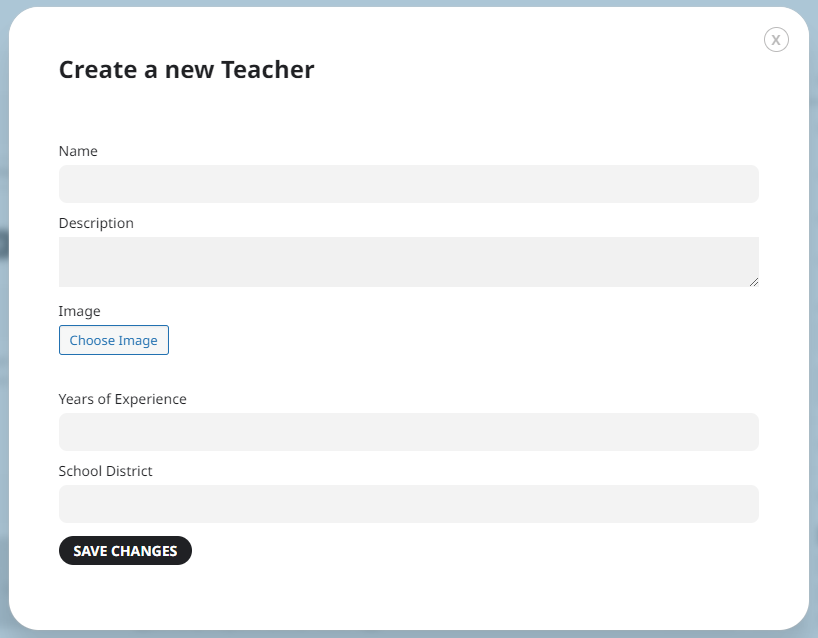
Once you click Save it will be saved to the event.
Alternatively, if you already have a bunch of MDT items (or teachers in our example) created for other events, you can select an item from the list by clicking Select from list button.
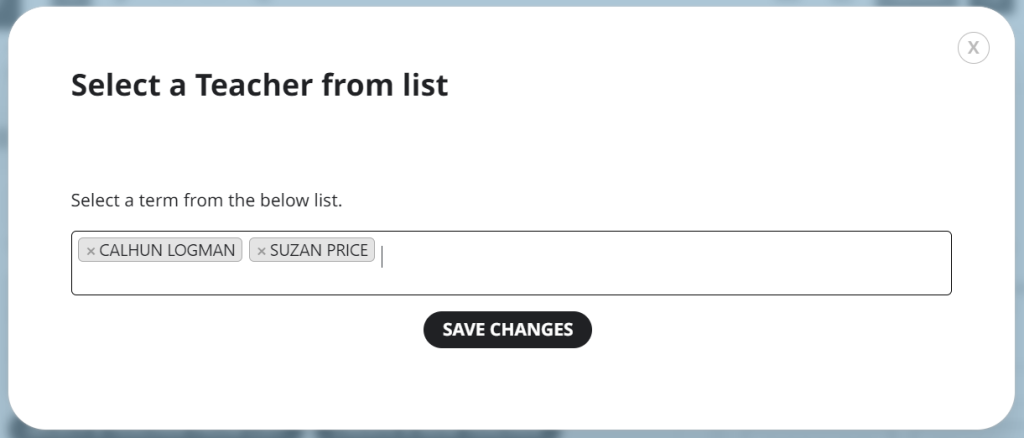
If you don’t have any items created this list will be blank and will ask you to create new items.
#3. Show in EventCard
Next, we need to make sure the MDT fields are set to show in the eventCard. Go into EventON settings > EventCard Design and enable the new MDT field and move it around to where you want it to show in the eventCard. (If its already enabled and still not showing, just moving it around the list and resaving it does the trick)
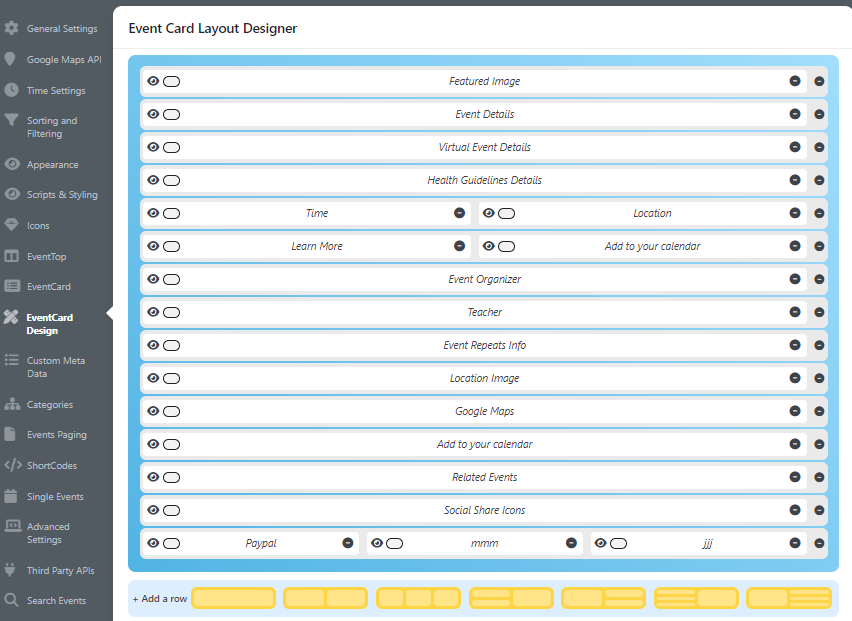
#4. Customization
You can customize the icon for the MDT field from EventON Settings > Icons
View on Front
Once all the data is entered the information will show like the below image on the event card for the event. (images are from EventON ver2.7)

Further Customization with WP Pluggable Filters
EventON provides a robust set of pluggable filters to allow developers to extend the core functionality of Multi-Data Types (MDT). By default, certain limits are placed on the quantity of data types and fields to ensure optimal performance and a streamlined UI. If your use case requires a more complex data structure, you can override these defaults using the following filters.
Increasing the Number of Multi-Data Types
By default, EventON allows for up to 3 multi-data types. If you need to accommodate more complex event configurations, you can use the evo_multi_data_type_count filter to increase this limit.
The filter expects an integer as a return value, representing the new maximum number of allowed multi-data types.
Example Implementation:
/**
 * Customizes the maximum number of Multi-Data Types allowed in EventON.
 *
 * @param int $count The default maximum number of multi-data types (3).
 * @return int The new total number of multi-data types allowed.
 */
function custom_eventon_extend_mdt_count( $count ) {
    // Increase the limit from 3 to 5 multi-data types
    return 5;
}
add_filter( 'evo_multi_data_type_count', 'custom_eventon_extend_mdt_count' );
Increasing the Number of Fields per Multi-Data Type
Each Multi-Data Type item is limited to a default number of fields. To allow for more granular data collection within a single MDT item, use the evo_multi_data_type_fields_count filter.
The filter expects an integer as a return value, representing the new total number of fields permitted per MDT item.
Example Implementation:
/**
 * Customizes the maximum number of fields allowed per Multi-Data Type item.
 *
 * @param int $count The default maximum number of fields per item (3).
 * @return int The new total number of fields allowed per MDT item.
 */
function custom_eventon_extend_mdt_fields_count( $count ) {
    // Increase the limit from 3 to 6 fields per MDT item
    return 6;
}
add_filter( 'evo_multi_data_type_fields_count', 'custom_eventon_extend_mdt_fields_count' );
Pro-Tip for Developers
When implementing these filters, ensure that you are returning an integer. If you are building a plugin that relies on these extensions, it is best practice to check if the filter is being applied or to use these hooks within your own plugin’s initialization to maintain compatibility with other EventON extensions.
Did this article help you?
- How to
- ** How to use event_type category to do more
- How to Activate EventON
- How To Allow Users to Submit Events and Create an Events Listing Page
- How to apply a patch fix
- How to Bulk Update Language Translations Using the Import/Export Tool
- How to cancel addon subscription before auto renew
- How to Deactivate EventON Addon Licenses
- How To Display or Hide the Live Now Icon
- How to Enable Auto-updates for EventON
- How to find your EventON license key
- How to Fix a Broken Sidebar Caused by the EventON Widget
- How To Hide Blank Rows On the Calendar EventTop
- How To Set Up and Use the Filter Bar on Calendars
- How to Set Up Health Guidelines for EventON and Extend It
- How to Setup & Use Custom Fields for Events
- How to setup & use multi data types
- How to Setup Basic Paypal for Events
- How to show past events
- How to show your calendar on external sites using an iFrame
- How To Turn on Sort Options On Your Calendar
- How To Upgrade Your EventON Addon License
- How to Use Hashtags to Link to Event Sections
- How to Use Single Event Data Values
- How to Use the EventCard Designer
- How To Use the EventON Shortcode Executor(ESE) Widget
- How To Use The EventTop Designer
- How To Use the ICS Import Tool
- How to Use Virtual Visible Event End Time for Events with Limited Visibility but Extended Durations
- Using an SMTP Mail Plugin To Solve Email Delivery Issues in EventON